


rsyslog: 흩어진 로그들의 ‘중앙 관제탑’ 세우기
리눅스를 운영할 때 관리해야 할 서버의 수가 몇 십대, 몇 백대 또는 몇 천대라면 각 서버에서 발생하는 문제 또는 로그에 대해 파악하기에 어려움을 겪을 수 있습니다. 그럴 때 도움을 주는 것이 바로 rsyslog 입니다. 하나의 서버에서 다른 여러 서버의 로그에 대해 확인할 수 있는 rsyslog 의 설정과 동작에 대해 설명합니다.
-
통합 로그 서버(logremote)와 클라이언트(logclient) 설정
우선 클라이언트(logclient)에서 로그를 포워딩하고 통합 로그 서버(logremote)가 이 것을 받기 위해선 “rsyslog”라는 서비스가 모든 서버에서 기동하고 있어야 합니다.
[root@logremote ~]# systemctl status rsyslog
rsyslog.service - System Logging Service
Loaded: loaded (/usr/lib/systemd/system/rsyslog.service; enabled; preset: enabled)
Active: active (running) since Wed 2026-04-01 15:26:45 KST; 1h 38min ago
Docs: man:rsyslogd(8)
https://www.rsyslog.com/doc/
Main PID: 2867 (rsyslogd)
Tasks: 4 (limit: 10292)
Memory: 31.0M (peak: 271.1M)
CPU: 29.248s
CGroup: /system.slice/rsyslog.service
└─2867 /usr/sbin/rsyslogd -n
Apr 01 15:26:45 localhost.localdomain systemd[1]: Starting System Logging Service...
Apr 01 15:26:45 localhost.localdomain rsyslogd[2867]: [origin software="rsyslogd" swVersion="8.2506.0-2.el9" x-pid="2867" x-info="https://www.rsyslog.com"] s>
Apr 01 15:26:45 localhost.localdomain systemd[1]: Started System Logging Service.
Apr 01 15:26:45 localhost.localdomain rsyslogd[2867]: imjournal: journal files changed, reloading... [v8.2506.0-2.el9 try https://www.rsyslog.com/e/0 ]
[root@logclient ~]# systemctl status rsyslog
rsyslog.service - System Logging Service
Loaded: loaded (/usr/lib/systemd/system/rsyslog.service; enabled; preset: enabled)
Active: active (running) since Wed 2026-04-01 15:47:37 KST; 1h 18min ago
Docs: man:rsyslogd(8)
https://www.rsyslog.com/doc/
Main PID: 2084 (rsyslogd)
Tasks: 3 (limit: 10292)
Memory: 1.8M (peak: 2.3M)
CPU: 326ms
CGroup: /system.slice/rsyslog.service
└─2084 /usr/sbin/rsyslogd -n
Apr 01 15:47:22 logclient systemd[1]: Starting System Logging Service...
Apr 01 15:47:37 logclient rsyslogd[2084]: [origin software="rsyslogd" swVersion="8.2506.0-2.el9" x-pid="2084" x-info="https://www.rsyslog.com"] start
Apr 01 15:47:37 logclient systemd[1]: Started System Logging Service.
Apr 01 15:47:37 logclient rsyslogd[2084]: imjournal: journal files changed, reloading... [v8.2506.0-2.el9 try https://www.rsyslog.com/e/0 ]
-
통합 로그 서버(logremote) 설정
통합 로그 서버(logremote)에서 firewalld 방화벽을 사용 중이라면 클라이언트(logclient)에서 접근할 포트와 사용할 프로토콜에 대한 허용을 해줘야 합니다.
그 전에 먼저 해야 할 것이 있습니다.
통합 로그 서버(logremote)의 /etc/rsyslog.conf 파일에서 UDP 프로토콜을 사용할 것인지, TCP 프로토콜을 사용할 것인지에 대한 설정을 해야 합니다.
사용할 프로토콜 부분에서 module 로 시작하는 부분과 input 으로 시작하는 부분의 주석을 해제하면 됩니다. 여기서는 UDP 를 사용하여 진행하겠습니다.
# Provides UDP syslog reception
# for parameters see http://www.rsyslog.com/doc/imudp.html
module(load="imudp") # needs to be done just once
input(type="imudp" port="514")
# Provides TCP syslog reception
# for parameters see http://www.rsyslog.com/doc/imtcp.html
#module(load="imtcp") # needs to be done just once
#input(type="imtcp" port="514")
기본적으로 port 는 보이는 것과 같이 “514”번을 사용합니다.
또 많은 클라이언트 서버에서 포워딩 하는 로그들을 구분하여 저장하기 구문을 맨 아래 추가합니다.
/var/log/remote 디렉토리 아래에 호스트이름으로 디렉토리를 생성하고 그 아래 로그 파일이 있는 구조입니다.
여기서는 커널,데몬 facility 에 대한 로그만 남도록 지정해 주었습니다.
template(name="BootLogFile" type="string" string="/var/log/remote/%HOSTNAME%/boot_process.log")
if ($inputname == 'imudp' or $inputname == 'imtcp') then {
if ($syslogfacility-text == 'kern' or $syslogfacility-text == 'daemon') then {
action(type="omfile" dynaFile="BootLogFile")
}
stop
}
저장 하고 나와 rsyslog 서비스를 재시작 해줍니다.
[root@logremote ~]# systemctl restart rsyslog
재시작 했다면 상태도 한번 다시 확인해 줍니다.
[root@logremote ~]# systemctl status rsyslog
rsyslog.service - System Logging Service
Loaded: loaded (/usr/lib/systemd/system/rsyslog.service; enabled; preset: enabled)
Active: active (running) since Wed 2026-04-01 17:41:43 KST; 1min 0s ago
Docs: man:rsyslogd(8)
https://www.rsyslog.com/doc/
Main PID: 3665 (rsyslogd)
Tasks: 4 (limit: 10292)
Memory: 1.5M (peak: 2.0M)
CPU: 35ms
CGroup: /system.slice/rsyslog.service
└─3665 /usr/sbin/rsyslogd -n
Apr 01 17:41:28 logremote systemd[1]: Starting System Logging Service...
Apr 01 17:41:43 logremote rsyslogd[3665]: [origin software="rsyslogd" swVersion="8.2506.0-2.el9" x-pid="3665" x-info="https://www.rsyslog.com"] start
Apr 01 17:41:43 logremote systemd[1]: Started System Logging Service.
Apr 01 17:41:43 logremote rsyslogd[3665]: imjournal: journal files changed, reloading... [v8.2506.0-2.el9 try https://www.rsyslog.com/e/0 ]
정상적으로 설정이 된 것을 확인했다면 이제 클라이언트(logclient)가 접근할 514/udp 포트에 대해서 방화벽에서 허용하는 설정을 해야 합니다.
[root@logremote ~]# firewall-cmd --add-port=514/udp --permanent
!여기서 –permanent 옵션은 재부팅 후에도 설정이 유지될 수 있게 하는 영구적 설정 옵션입니다.
허용할 포트에 대해 추가를 했다면 reload를 해줍니다.
[root@logremote ~]# firewall-cmd –reload
Reload 후에 실제 적용이 잘 되었는 지 확인해봅니다.
[root@logremote ~]# firewall-cmd --list-all
public (active)
target: default
icmp-block-inversion: no
interfaces: ens160
sources:
services: cockpit dhcpv6-client ssh
ports: 514/udp
protocols:
forward: yes
masquerade: no
forward-ports:
source-ports:
icmp-blocks:
rich rules:
514/udp 포트가 허용된 것을 확인할 수 있습니다.
netstat 명령어로 추가 확인해 보면,
[root@logremote ~]# netstat -ulnp
Active Internet connections (only servers)
Proto Recv-Q Send-Q Local Address Foreign Address State PID/Program name
udp 0 0 0.0.0.0:5353 0.0.0.0:* 878/avahi-daemon: r
udp 0 0 127.0.0.1:323 0.0.0.0:* 922/chronyd
udp 0 0 0.0.0.0:514 0.0.0.0:* 3665/rsyslogd
udp6 0 0 :::5353 :::* 878/avahi-daemon: r
udp6 0 0 ::1:323 :::* 922/chronyd
udp6 0 0 :::514 :::* 3665/rsyslogd
보이는 것처럼 514/udp 에 대해 정상적으로 허용된 것을 볼 수 있습니다.
-
클라이언트(logclient) 설정
통합 로그 서버(logremote) 설정을 했다면 이제 로그를 포워딩 할 클라이언트(logclient) 설정을 해야 합니다.
통합 로그 서버(logremote)와 마찬가지로 /etc/rsyslog.conf 파일에서 설정합니다.
통합 로그 서버(logremote)에서 했던 설정과는 차이가 있는데, 설정 방법은 파일 맨 아래 해당 구문을 추가합니다.
# ### sample forwarding rule ###
#action(type="omfwd"
# # An on-disk queue is created for this action. If the remote host is
# # down, messages are spooled to disk and sent when it is up again.
#queue.filename="fwdRule1" # unique name prefix for spool files
#queue.maxdiskspace="1g" # 1gb space limit (use as much as possible)
#queue.saveonshutdown="on" # save messages to disk on shutdown
#queue.type="LinkedList" # run asynchronously
#action.resumeRetryCount="-1" # infinite retries if host is down
# # Remote Logging (we use TCP for reliable delivery)
# # remote_host is: name/ip, e.g. 192.168.0.1, port optional e.g. 10514
#Target="remote_host" Port="XXX" Protocol="tcp")
kern.*;daemon.* @172.16.50.244:514
추가한 구문의 의미를 해석해보면,
kern와 daemon facility 라고해서 로그를 생성하는 주체나 분류입니다. auth, cron, syslog, local0~7 등도 사용할 수 있습니다.
*는 로그의 레벨을 나타냅니다. debug, info, waring, err 등이 있는 데 *은 이 모든 것을 의미합니다.
@는 전송 방식을 나타냅니다. @ 하나는 UDP, @@ 두개는 TCP를 사용하겠다는 의미입니다.
172.16.50.244:514는 로그를 수할 통합 로그 서버(logremote)의 IP주소와 포트입니다.
설정을 마쳤다면 저장하고 나와 rsyslog 서비스를 재시작 해줍니다.
[root@logclient ~]# systemctl restart rsyslog
재시작 했다면 상태도 한번 확인해 줍니다.
[root@logclient ~]# systemctl status rsyslog
rsyslog.service - System Logging Service
Loaded: loaded (/usr/lib/systemd/system/rsyslog.service; enabled; preset: enabled)
Active: active (running) since Thu 2026-04-02 10:46:25 KST; 43s ago
Docs: man:rsyslogd(8)
https://www.rsyslog.com/doc/
Main PID: 3044 (rsyslogd)
Tasks: 3 (limit: 10292)
Memory: 1.3M (peak: 1.5M)
CPU: 29ms
CGroup: /system.slice/rsyslog.service
└─3044 /usr/sbin/rsyslogd -n
Apr 02 10:46:10 logclient systemd[1]: Starting System Logging Service...
Apr 02 10:46:25 logclient rsyslogd[3044]: [origin software="rsyslogd" swVersion="8.2506.0-2.el9" x-pid="3044" x-info="https://www.rsyslog.com"] start
Apr 02 10:46:25 logclient systemd[1]: Started System Logging Service.
Apr 02 10:46:25 logclient rsyslogd[3044]: imjournal: journal files changed, reloading... [v8.2506.0-2.el9 try https://www.rsyslog.com/e/0 ]
-
로그 포워딩 테스트
통합 로그 서버(logremote)와 클라이언트(logclient)의 설정을 모두 마쳤습니다.
이제 실제 클라이언트(logclient)에서 로그를 포워딩 해서 통합 로그 서버(logremote)가 수신하는 지 확인해 봅니다.
클라이언트(logclient) 에서 아래와 같이 logger 명령어를 통해 로그를 발생시킵니다.
[root@logclient ~]# logger -p daemon.info "이 메시지는 원격지로 전송됩니다."
명령어를 입력했다면 통합 로그 서버(logremote)의
/var/log/remote/logclient/boot_process.log 에서 수신 받은 로그를 확인할 수 있습니다.
(여기서 해당 로그 파일은 통합 로그 서버(logremote)의 /etc/rsyslog.conf 파일에서 지정했습니다.)
tail 명령어로 실시간으로 확인해 봅니다.
[root@logremote ~]# tail -f /var/log/remote/logclient/boot_process.log
Apr 2 15:14:26 logclient systemd[1]: Starting System Logging Service...
Apr 2 15:14:41 logclient systemd[1]: Started System Logging Service.
Apr 2 15:14:45 logclient systemd[1]: Starting Hostname Service...
Apr 2 15:14:45 logclient systemd[1]: Started Hostname Service.
Apr 2 15:15:15 logclient systemd[1]: systemd-hostnamed.service: Deactivated successfully.
Apr 2 15:15:51 logclient root[2130]: 이 메시지는 원격지로 전송됩니다.
정상적으로 포워딩 되어 boot_process.log 파일에서 확인이 됩니다.
그럼 마지막으로 클라이언트(logclient)를 한번 재부팅 해보겠습니다.
[root@logclient ~]# shutdown -r now
재부팅 후 통합 로그 서버(logremote) 에서 계속해서 tail -f /var/log/remote/logclient/boot_process.log 를 실행 중인 상황에서 보면
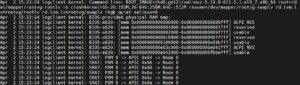
일부만 가져왔지만 이미지와 같이 클라이언트(logclient)가 부팅할 때 발생하는 로그들을 확인할 수 있습니다.
이렇게 클라이언트(logclient)에서 로그를 포워딩하고 통합 로그 서버(logremote)에서 수신하여 확인할 수 있는 rsyslog 에 대해 알아보았습니다.
-
의견
이 전에 이야기했듯이 몇 십대, 몇 백대, 몇 천대를 관리해야 하는 환경에서 각 서버들이 문제가 발생했을 때 확인해서 파악하기란 모래사장에서 바늘 찾는 것과 같습니다. 그렇기에 rsyslog 는 수 많은 서버를 관리하는 환경에서 많은 도움을 줍니다. 로그에 대해 어떻게 필터링할 것인지에 대해 커스터마이징 할 수 있어서 꼭 필요한 로그만 하나의 서버에서 한 눈에 볼 수 있다는 이점이 큰 것 같습니다. rsyslog 를 구성하는 방법과 설정에 필요한 파라미터들에 대한 이해가 있다면 조금 더 발전된 엔지니어가 되지 않을까 싶습니다.
자유롭게 댓글을 달아주세요! 언제나 환영합니다.
기타 문의: info@neoclova.co.kr
네오클로바 기술블로그 홈 바로가기: https://neoclova.net
네오클로바 홈페이지: http://neoclova.co.kr